
Mobile Settings
Mobile settings should be set up automatically, this guide can be used to check you have the correct settings applied for Apple and Android devices.
Apple / iOS
⚠️Note: Dependent on the software version and locale of your mobile device, the menu structures for your device may vary slightly. If you cannot locate these settings in the exact location specified, refer to your device specific literature or manual. Alternatively, you can use the search within your Settings to locate a specific item.
Within the Mobile Data settings menu, toggle “Use Network Provider Settings” to on. Enabling this service will auto populate your data APN fields. Alternatively, a manual process can be followed.
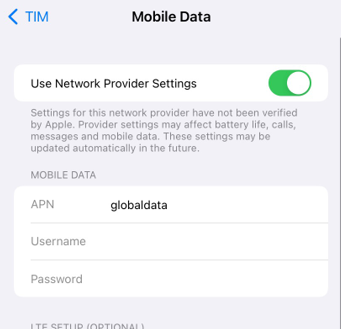
Manual Settings (to verify settings are correct):
Mobile Internet and Network: Please confirm that your device has the correct Access Point Name (APN) setting to use Mobile Data.
To confirm your APN Settings, go to:
- Settings > Cellular > Cellular Data Network
or
- Settings > Mobile Data > Mobile Data Network
- Action: Confirm the APN automatically selected on your device:
- If the value displayed in Cellular Data / Mobile Data APN is globaldata - no new APN Cellular/Mobile Data APN Change is needed.
- If no APN or a different value is displayed - under Cellular Data or Mobile Data enter the value in APN: globaldata
- If the APN setting is updated, a reboot of the mobile device is required.
- Action: Confirm the APN automatically selected on your device:
Mobile Hotspot: Please confirm that your device has the correct Access Point Name (APN) setting to support Mobile Hotspot.
For Mobile Hotspot to function properly on a device, the device must have a valid APN for Tethering in place.
The default Tango APN for Tethering is globalhotspot.
- To confirm your APN Settings, go to:
- Settings > Cellular > Cellular Data Network
or
- Settings > Mobile Data > Mobile Data Network
- Action: Confirm the APN automatically selected on your device:
- If no APN or a different value is displayed - under Personal Hotspot enter the value in APN: globalhotspot
- Action: Confirm the APN automatically selected on your device:
- If the APN setting is updated, a reboot of the mobile device is required.
Enable Data Roaming: Please confirm that your iOS device has Data Roaming enabled
- To confirm that Data Roaming is enabled, go to:
- Settings > Cellular > Cellular Data Options
or
- Settings > Mobile Data > Mobile Data Options
- Action: Enable the field called Data Roaming (Slider is showing as green)
Voice and Data Network Type: Please confirm that the Voice and Data Network selection on your mobile device is set to 4G, VoLTE On.
- To confirm that the Voice & Data Network Type, go to:
- Settings > Cellular > Cellular Data Options > Voice & Data
or
- Settings > Mobile Data > Mobile Data Options > Voice & Data
- Action: Select the field called 4G, VoLTE On
Network Selection Option: Please confirm that the Network Selection option is Set to Automatic.
To confirm that the Network Selection is set to Automatic, go to:
- Settings > Cellular > Network Selection
or
- Settings > Mobile Data > Network Selection
- Action: Confirm that Automatic is Enabled (Slider is showing as green)
Dial Assist: To optimize the user experience and ease of use, please disable Dial Assist.
To disable Dial Assist, go to:
- Settings > Phone > Dial Assist
- Action: Disable Dial Assist (Slider is not showing green)
Contact Management: To optimize the user experience and ease of use it is highly recommended that all contacts numbers on your iOS device be stored in international format. Examples: +44 7836 6XXXXX or +1 (214) 830 XXXX
Android
⚠️ Note: Dependent on the software version and device manufacturer of your mobile device, the menu structures for your device may vary slightly. If you cannot locate these settings in the exact location specified, refer to your device specific literature or manual. Alternatively, you can use the search within your Settings to locate a specific item.
Mobile Internet and Network: Please confirm that your device has the correct Access Point Name (APN) setting to use Mobile Data.
To confirm your APN Settings, go to:
- Settings > Connections > Mobile Networks > Access Point Names
or
- Settings > Network and Internet > Mobile Networks > Access Point Names
- Action: Confirm the APN automatically selected on your device:
- If the value displayed is globaldata
- No new APN needs to be added.
- If no APN or a different value is displayed:
- Under Access Point Name (for all Android devices)
- Select the menu button (three dot icon, top right) and select New APN, or the + Sign at the top right
- When prompted enter:
- Name: globaldata
- APN: globaldata
- Select the menu button (three dot icon, top right) and select Save
- Now Select the globaldata APN that you just created.
- If the APN setting is updated, a reboot of the mobile device is required.
- Under Access Point Name (for all Android devices)
- If the value displayed is globaldata
Mobile Hotspot: Please confirm that your device has the correct Access Point Name (APN) to support Mobile Hotspot.
For Mobile Hotspot to function properly on a device, the device must have a valid APN for Tethering in place.
- The default Tango APN for Tethering is ‘globalhotspot’.
- To confirm your APN Settings, go to:
- Settings > Connections > Mobile Networks > Access Point Names
or
- Settings > Network and Internet > Mobile Networks > Access Point Names
- If no APN or a different value is displayed:
- Under Access Point Name (for all Android devices)
- Select the menu button (three dot icon, top right) and select New APN, or the + Sign at the top right
- When prompted enter:
- Name: globalhotspot
- APN: globalhotspot
- APN Type: DUN (Should be capitalized
- Select the menu button (three dot icon, top right) and select Save
- Ensure the globaldata APN remains selected.
- If the APN setting is updated, a reboot of the mobile device is required.
- Under Access Point Name (for all Android devices)
Network Selection & Network Type: Please confirm that Network selection on your mobile device is set to Automatic and network type should be set to LTE/3G (auto connect) or 4G.
To confirm your Network Selection settings, go to:
- Settings > Connections > Mobile Networks > Network Operators
or
- Settings > Network and Internet > Mobile Networks > Automatically Select Network
- Action: Confirm that this is set to: Automatically / or Enabled
To confirm the Network Type Selection, go to:
- Settings > Connections > Mobile Networks > Network Mode
or
- Settings > Network and Internet > Mobile Networks > Preferred Network Type
- Action: Confirm that this is set to: LTE/3G (auto connect) or 4G